
Workspace examples · Retail and ecommerce
A practical fashion-brand example showing how Collections, product tags and file statuses help teams find the content they need for product pages, seasonal campaigns and creator partnerships.
TL;DR: To organize ecommerce assets in Stockpress, start with a small set of Collections for the work your team does, then connect related images and documents with consistent SKU and product-name tags. Use season and influencer tags to narrow the selection, file statuses to identify readiness, and permissions to control access.
This guide uses Marlow & Thread, a fictional womenswear brand created by Stockpress, to show how that setup works. The brand, products and influencers are invented, and the photography is AI-generated. This is a working demonstration, not a customer testimonial or a claim about measured results.
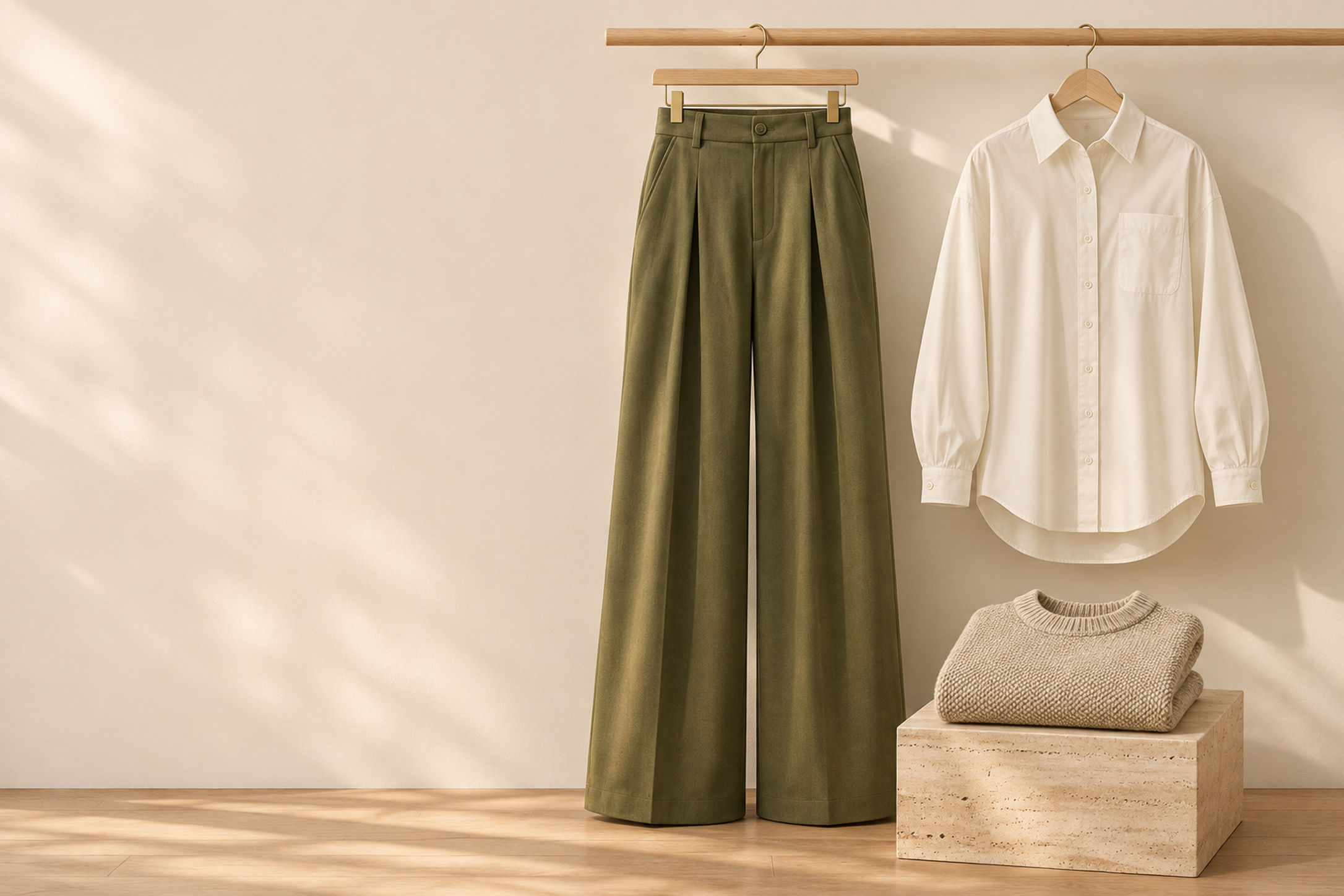
A small capsule wardrobe provides a useful starting point for a retail and ecommerce content library.
Start with the work your retail team needs to do
A product launch needs more than a product photograph. The ecommerce team needs front, back and detail views, accurate copy and a size chart. Marketing needs images that work in a seasonal story. Designers need the current logo. The person managing influencers needs to find content by creator as well as by product.
Those are different routes into the same library. If everything is organized only by the date of a photo shoot, each teammate has to understand how the shoot was filed before they can do their own work.
Stockpress Digital Asset Management for retail and ecommerce gives those teams a shared place to organize, find and distribute content. Marlow & Thread keeps the example manageable with three products:
| Product | Workspace SKU | Product identity |
|---|---|---|
| Ellis Shirt | 01760 | An oversized ivory cotton shirt |
| Rowan Trouser | 01770 | A muted olive, wide-leg tailored trouser |
| Arden Knit | 01780 | An oatmeal textured crewneck |
The same pieces appear in studio photographs, seasonal lifestyle images and influencer content. That makes it possible to organize around both the product and the job someone needs to finish.
A retail and ecommerce Collection structure you can copy
Marlow & Thread uses five master Collections. Sub-Collections give each one a clear purpose without creating a long path of nested folders.
| Master Collection | Sub-Collections | What belongs here |
|---|---|---|
| Brand Assets | Logos Brand Guide Content Portal Header Image | Primary and reversed logos, the brand guide and the portal header artwork. |
| Product Photography | Ellis Shirt Rowan Trouser Arden Knit | Front, back and detail photographs for each product. |
| Lifestyle Photography | Spring Summer Autumn | Seasonal styling and campaign photographs featuring the capsule wardrobe. |
| Product Specifications | Ellis Shirt Rowan Trouser Arden Knit | Specification PDFs, size charts and editable Word product copy. |
| Influencer Content | Sophie Lane Maya Bennett Hannah Brooks | Creator photographs grouped by the person supplying or appearing in the content. |
This structure makes browsing straightforward. An ecommerce manager can start with a product, a campaign manager with a season, and a designer with the brand assets.
A file can also belong to multiple Stockpress Collections without creating another copy. If a photograph belongs in both a product selection and a seasonal campaign, add the existing file to both. Learn how Collections organize files without extra copies.
For a larger catalog, adapt the product level to your range: Dresses, Knitwear or Accessories may be more useful browsing categories than hundreds of individual product Collections. Keep SKU tags available for the precise product lookup. Add more nesting only when it helps someone find or manage content.
Use SKU and product-name tags to connect the whole product story
Collections provide recognisable places to browse. Tags connect related files across those places.
In Marlow & Thread, the SKU 01760 and the product-name tag Ellis Shirt appear on its studio photographs, specification sheet, size chart and product copy. They also appear on lifestyle and influencer images featuring the shirt. A teammate can start with the product and find different kinds of supporting content.
| Category or field | Examples | Why it helps |
|---|---|---|
| SKU | 01760; 01770; 01780 | Find assets for a known product identifier. Preserve leading zeros. |
| Product Name | Ellis Shirt; Rowan Trouser; Arden Knit | Give people a route in when they know the name rather than the SKU. |
| Season | Spring; Summer; Autumn | Find suitable content across products and shoots. |
| Influencer | Sophie Lane; Maya Bennett; Hannah Brooks | Bring a creator’s content together across relevant products and campaigns. |
| Photographer | A custom text field containing a credit | Keep a source or credit alongside the file. Credits in this fictional demo are sample metadata. |
| File status | Final; In Progress | Show the team’s current assessment of readiness. Status is separate from a Tag Category. |
A single outfit photograph can carry all three product names and all three SKU tags. Tag each product actually represented, rather than forcing the image into one product category.
Combine AI description with your own product knowledge
The workspace also contains automatically generated descriptive tags such as Clothing, Pants and Knitwear. These can help people discover an image by what is visible. Your team still supplies the exact product identifiers, campaign context and permissions. Do not treat an AI-generated clothing label as confirmation of a SKU, material or usage right.
Keep a small, agreed vocabulary for your business tags. Choose one spelling for each product and season, reuse existing tags and bulk-tag files that share the same information. Stockpress Tag Categories can also be required, and you can control which roles add new tags.
Add more categories when the team needs them
Useful extensions include Shot Type with Front, Back and Detail; Asset Type with Product Photography, Lifestyle and Size Chart; or Color with Ivory, Muted Olive and Oatmeal. These are suggested additions, rather than categories already configured in this demo.
For creator campaigns, consider a usage-rights field or category, an expiry date and a link to the agreement. Record whether a file is cleared for the intended channel and period. Naming an influencer or photographer does not, by itself, establish permission to use the image.
How the same workspace supports the team from shoot to launch
1. Receive and identify the content
The creative team adds studio images to the product photography Collections. Merchandising adds the relevant specification, size chart and editable copy. Both use the agreed SKU and product-name tags, so images and documents remain connected.
For external contributors, a Guest Upload page is an optional next step. It can send incoming files to a chosen Collection without making the contributor a workspace user. Set an incoming status such as In Progress, then have a teammate check the files and metadata. Guest Upload pages are available on Pro and Premium.
2. Make the review state visible
The demo contains files marked Final and others marked In Progress. For example, the Ellis Shirt studio images are marked Final, while the Rowan Trouser studio images are In Progress. The distinction gives a reviewer a useful starting point.
Agree what Final means for your team: the retouch is checked, product details match, the intended usage is cleared and the responsible person has approved the asset. A status label communicates that decision; it does not make the decision or replace access permissions.
3. Build a product page from connected assets
For an Ellis Shirt product page, the ecommerce manager can search by SKU 01760, then narrow the results by file type and status. Studio images supply the product views; the documents provide copy, fit information and measurements.
The editable copy file contains a product description, product details, care information, a short social caption and an image description. Keeping those alongside the size chart gives merchandising and ecommerce a shared place to check what they are preparing to publish.
When a file changes, use file versioning to keep its revisions together. A new version still needs the appropriate review before your team treats it as ready for use.
4. Find a campaign image without asking who filed it
A marketer preparing a summer email can filter by Season: Summer, Product Name: Ellis Shirt, File type: Image and Status: Final. That describes the task directly, instead of relying on someone remembering a shoot folder.
A creator manager can add an Influencer filter. A designer can narrow by orientation when choosing a layout. The same library serves each task through a different selection of metadata. See how search and filters work in Stockpress.

One summer photograph can be relevant to several products. Product and season tags make those connections searchable.
5. Give people access to the content they need
Stockpress includes unlimited users, so merchandising, ecommerce, creative and marketing can each have access without per-seat charges. Use roles, teams and Collection permissions to decide who can see, edit, download or share the relevant content.
For a campaign handoff, share a reviewed selection rather than the whole working library. A retailer may need product photographs and size charts; an agency may need campaign imagery and brand assets. The selection should match the job and the agreed usage.
Turn repeat searches into useful Smart Collections
The demo structure above uses regular Collections. Once your tags and statuses are reliable, you can add Smart Collections
that populate from matching search and filter criteria, including new files added later.
| Suggested view | Criteria to configure | Team task |
|---|---|---|
| Summer images ready to use | Season: Summer + File type: Image + Status: Final | Prepare a reviewed summer campaign selection. |
| Ellis Shirt product kit | SKU: 01760 + Status: Final | Find the product’s ready images and documents together. |
| Rowan photography in review | Product Name: Rowan Trouser + File type: Image + Status: In Progress | Find imagery that still needs review. |
Review the matching files before saving each view. The rules reflect the metadata you supply; they do not assess image quality or check an influencer agreement. For a personal shortcut, Stockpress also supports private pinned searches.
Give partners a clear starting point with a Content Portal
The workspace includes dedicated portal header artwork. A useful next step is a Content Portal that presents selected assets in a branded destination.
For Marlow & Thread, a partner portal could open with the brand image and a short explanation of the range, then offer links to brand assets, product photography, specifications and reviewed seasonal content. A retail partner should be able to start with the product they stock rather than learn the team’s entire working structure.
Choose public, landing-page or login-required visibility deliberately. A public portal makes its included content available to anyone with the link. Keep unreleased products, working files and restricted creator content out of a public selection. A branded presentation does not turn an In Progress file into an approved asset.
How to build your own retail workspace in Stockpress
- Choose one active range or campaign. Start with a manageable selection that the team needs now.
- Create the five master Collections. Adapt the sub-Collections to your catalog, seasons and contributors.
- Agree the core metadata. Use SKU and Product Name consistently, then add Season and Influencer where relevant. Define whether a SKU identifies a style, colorway or size variant.
- Upload and tag a small batch. Check a product image, a lifestyle image and a document before bulk-applying metadata to similar files.
- Define review and access. Decide who can mark files Final, what that requires and who can access working content.
- Test real tasks with teammates. Ask someone to find an Ellis Shirt size chart, a Final summer image and a creator’s photographs without help.
- Add repeat views and handoffs. Create Smart Collections or a Content Portal when the team knows which selections it uses repeatedly.
As the catalog grows, add categories such as market, language or sales channel when they solve an actual finding or distribution problem. Keep the product identifier consistent across your business systems. A DAM connects product content; it does not replace your inventory, pricing or product-information system.
For a real retail example, read how Giant Bicycles uses Stockpress for product launches and retail asset distribution. For setup instructions, use the Getting Started guide.
Retail and ecommerce workspace FAQs
How should an ecommerce brand organize product photos and documents?
Use clear Collections for browsing and consistent SKU and product-name tags across photographs, specifications, size charts and copy. Add season, creator and status filters so people can narrow the results for their task.
Can one photograph belong to more than one Stockpress Collection?
Yes. A file can be included in multiple Collections without creating duplicate copies. This lets a product image appear in both a product selection and a campaign selection.
Should every SKU have its own Collection?
Not necessarily. Individual product Collections work well for a small range. Larger catalogs may be easier to browse by product category, using SKU tags for exact searches and Smart Collections for recurring selections.
How do we know which assets are ready to use?
Define a review process, assign responsibility and use a file status such as Final to record the result. Combine that status with the intended usage and access settings. A status label alone is not an approval or a usage-rights check.
Can we organize influencer content by both creator and product?
Yes. Apply the influencer’s name and each relevant product’s SKU or name to the same file. Keep usage permissions and expiry information alongside it so the team can check the intended use.
Is Marlow & Thread a real Stockpress customer?
No. Marlow & Thread is a fictional demonstration workspace created by Stockpress. Its products, influencers and product specifications are invented, and its photography is AI-generated.
Build a workspace around your next product launch
Start with the files your team needs this week. Give them clear Collections, useful product tags and an agreed review process, then let teammates find and use the content for themselves.
Start free — no credit card required · Watch the Stockpress demo
