
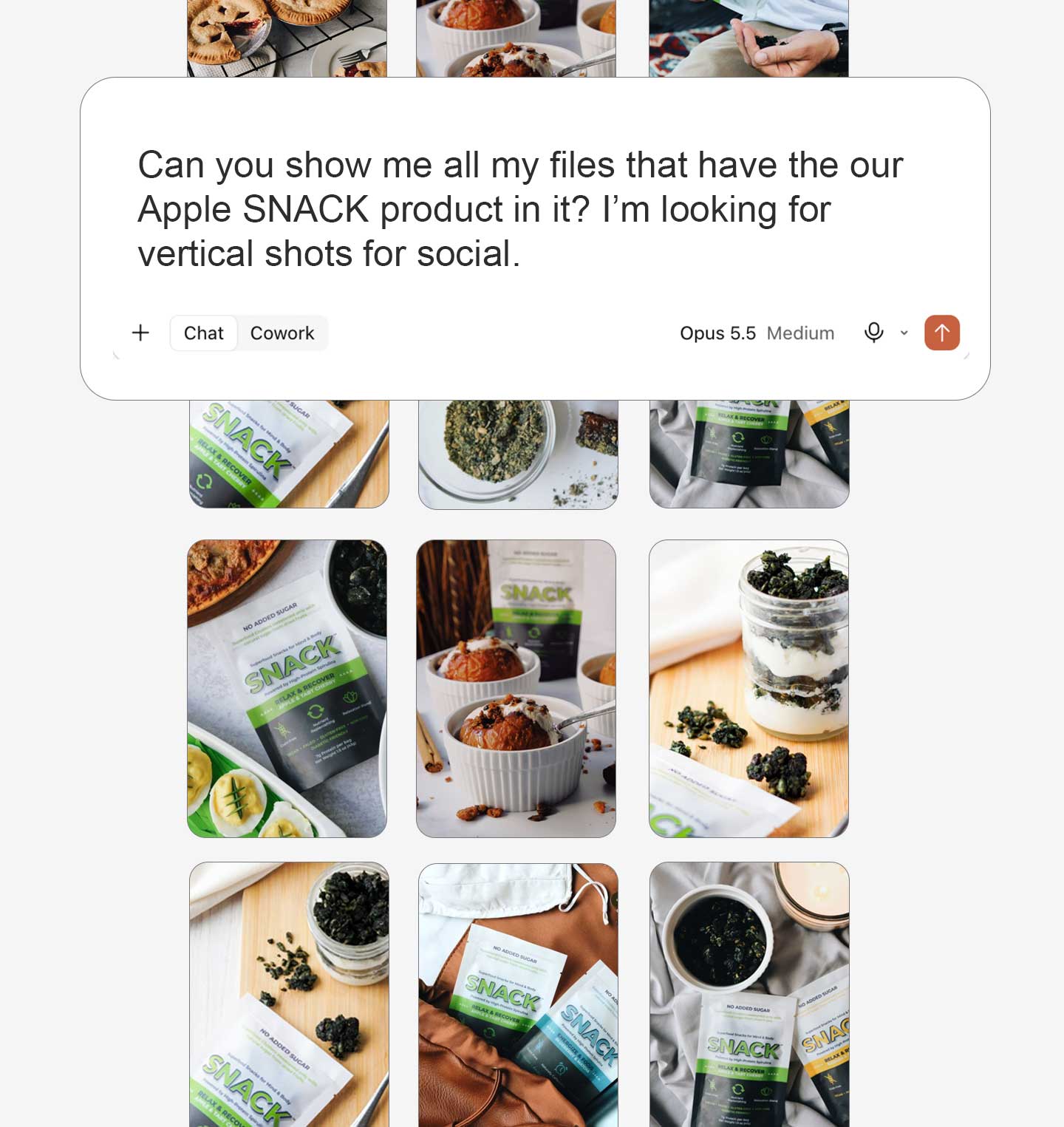
Stockpress MCP Server
Find and use any assets with AI. Just ask.
Use the Stockpress MCP server. Connect it to the AI tools you already use, then find, review, organize, and use your assets just by asking.
Use the Stockpress MCP server. Connect it to the AI tools you already use, then find, review, organize, and use your assets just by asking.
Watch how a simple request can turn into an organized Collection, a creative shortlist or an inventory of your brand assets.
Connect to your LLM once, then ask away. Here’s some of what your AI assistant can do with your Stockpress library.
Scrolling through hundreds of files?
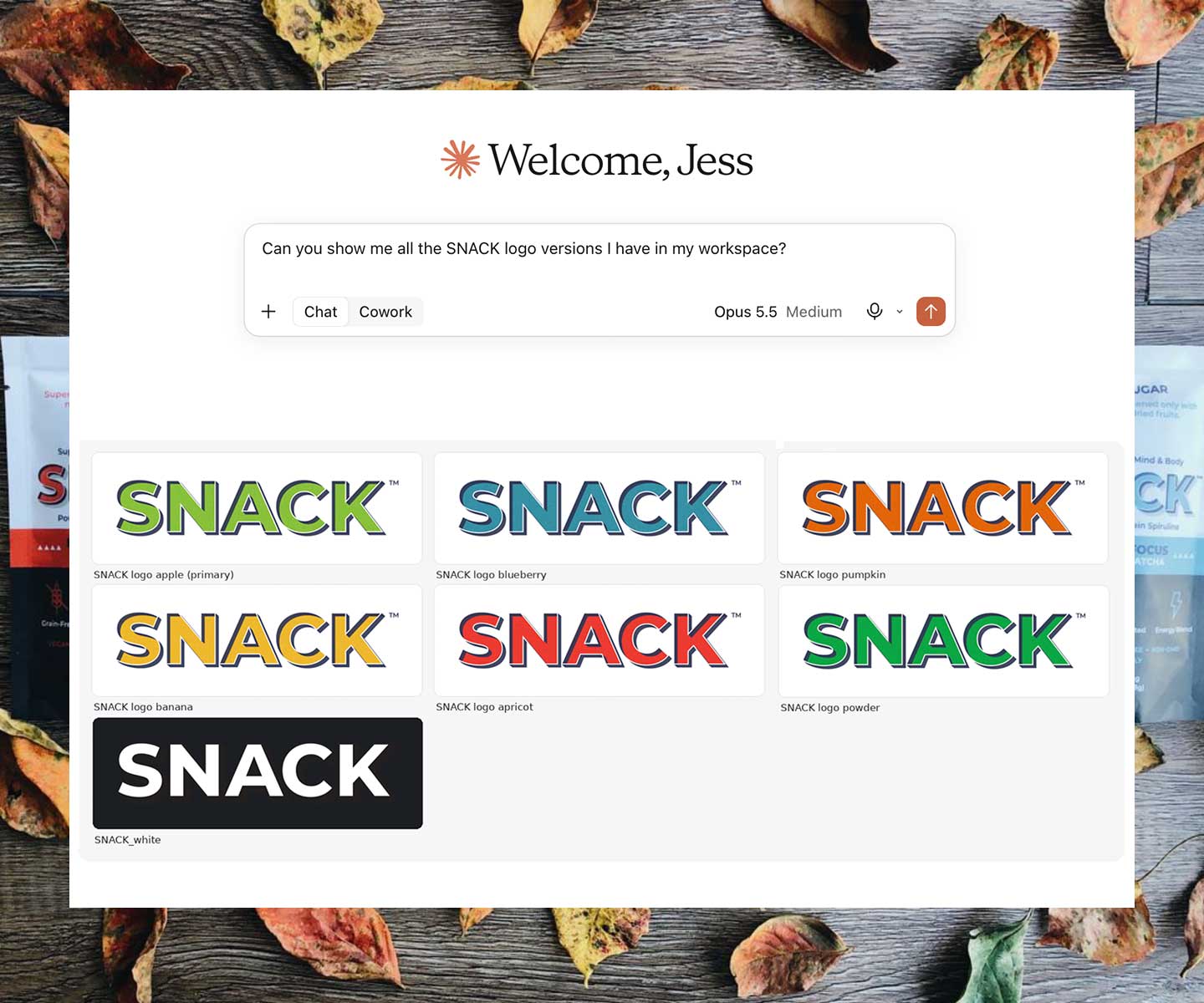
Tell your assistant what you’re looking for. “Show me all my logo iterations,” and it searches your files, tags, descriptions, metadata and Collections. No need to remember filenames.

Organizing on your to-do list? (Again)
Ask for a Collection made up of the files you’ve found. Set up a Smart Collection that keeps itself up to date, or find untagged files, review metadata, and uncover unused content.
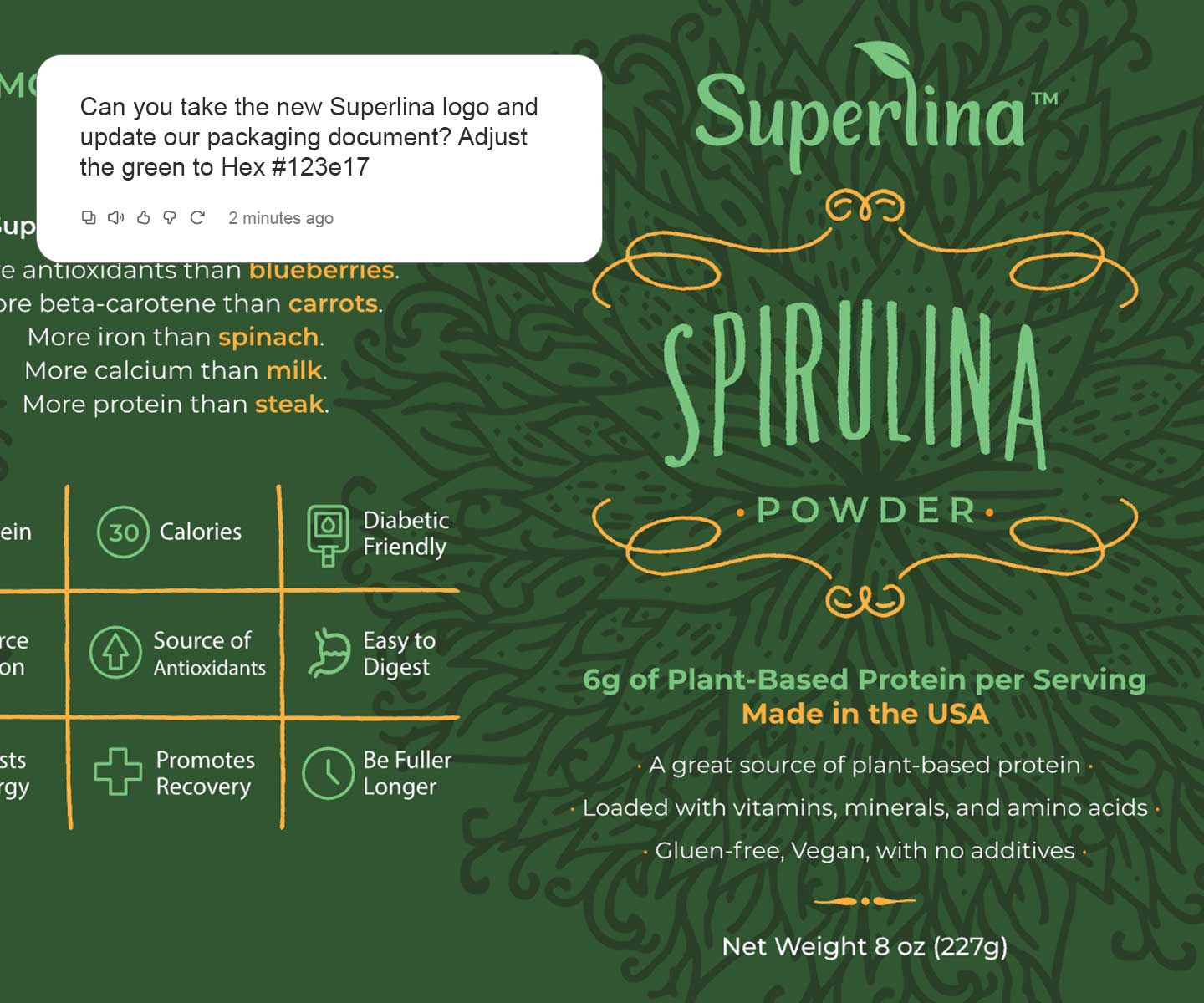
Make new assets from old
Use the content your AI assistant finds in your workspace to create new iterations, help plan campaigns, prepare brand asset inventories and build useful summaries or reports.

Not sure what files to use?
Ask your AI assistant to examine images, compare brand assets and recommend content for a campaign, social post or presentation. Get a useful shortlist without starting from scratch.
Real requests, real results. Copy one, tweak it, and see what your library can do.
“Find the five best images for our summer campaign Collection. Show me previews and explain why you chose them.”
A shortlist from your existing assets, with previews and reasons. No scrolling required.
“Find every version of our logo and group them by color and format. Tell me which ones work best for the presentation.”
An organized brand asset inventory, instead of 14 files called logo_final_v2.
“Show me all the files without tags and create a Collection called Untagged Files.”
A ready-made to-do list for your next tagging session.
“Create a Smart Collection of all JPG files owned by Jessica.”
A Collection that keeps itself up to date. Thanks, Jessica.
“Show me how our content library has grown over the last 12 months, broken down by file type.”
A clear picture of your library, with a chart if your AI tool supports one.
“Find all our product images featuring pink packaging and create a Collection called Pink Product Campaign.”
One request, one new Collection.
MCP extends what you can do with your Stockpress workspace into the AI tools you already use. Get the Stockpress MCP as part of every tier and try Stockpress Premium features FREE for 14-days!
No credit card required. Try all Premium features for 14 days.
Model Context Protocol (MCP) is an open standard that lets AI tools connect to other systems, like your digital asset management (DAM) platform.
Any AI application that supports custom MCP connectors such as Claude, ChatGPT, Perplexity, Copilot, etc. Availability and subscription requirements vary by provider.
Nope. Once you’re connected, just ask in everyday language.
Only what your Stockpress account can see. Restricted files and Collections stay restricted to only those who have access in the workspace.
No. Connecting doesn’t transfer your library. Your AI tool retrieves file content or metadata only when it needs it for a request, so it’s worth checking your AI provider’s data policies too.
Absolutely. It can create Collections, add files to them and set up Smart Collections using supported filters.
No. The MCP server doesn’t support uploading, editing or deleting files. Your originals stay put.
Some AI tools can create presentations, summaries and reports using content from Stockpress. That’s down to the AI tool you connect, not the MCP server itself. If your AI tool can create documents, the Stockpress MCP can help!
Yes. You’ll need a Stockpress workspace and an active account. No account yet? You can get started for free.